
Channel processing
Each channel has its own processing screen. To open it, tap the gain and EQ preview at the top of a channel strip.
The screen has up to four pages: Input, Gate, Comp and EQ. On a tablet or computer they are listed down the left side. On a phone they are tabs along the bottom. Each one shows On or Off under its name.
A page only appears if your mixer has that processing for this kind of channel. Many mixers have no gate on buses, for example, so a bus has no Gate page.
Moving around
- Tap a page name to switch to it.
- Swipe left or right to go to the next or previous channel.
- Swipe up or down from the top or bottom edge to go to the next or previous page.
- Tap the value in the top bar to type an exact number for the control you last touched.
- Tap the mixer logo in the top-left corner to go back to the mixer.
Input
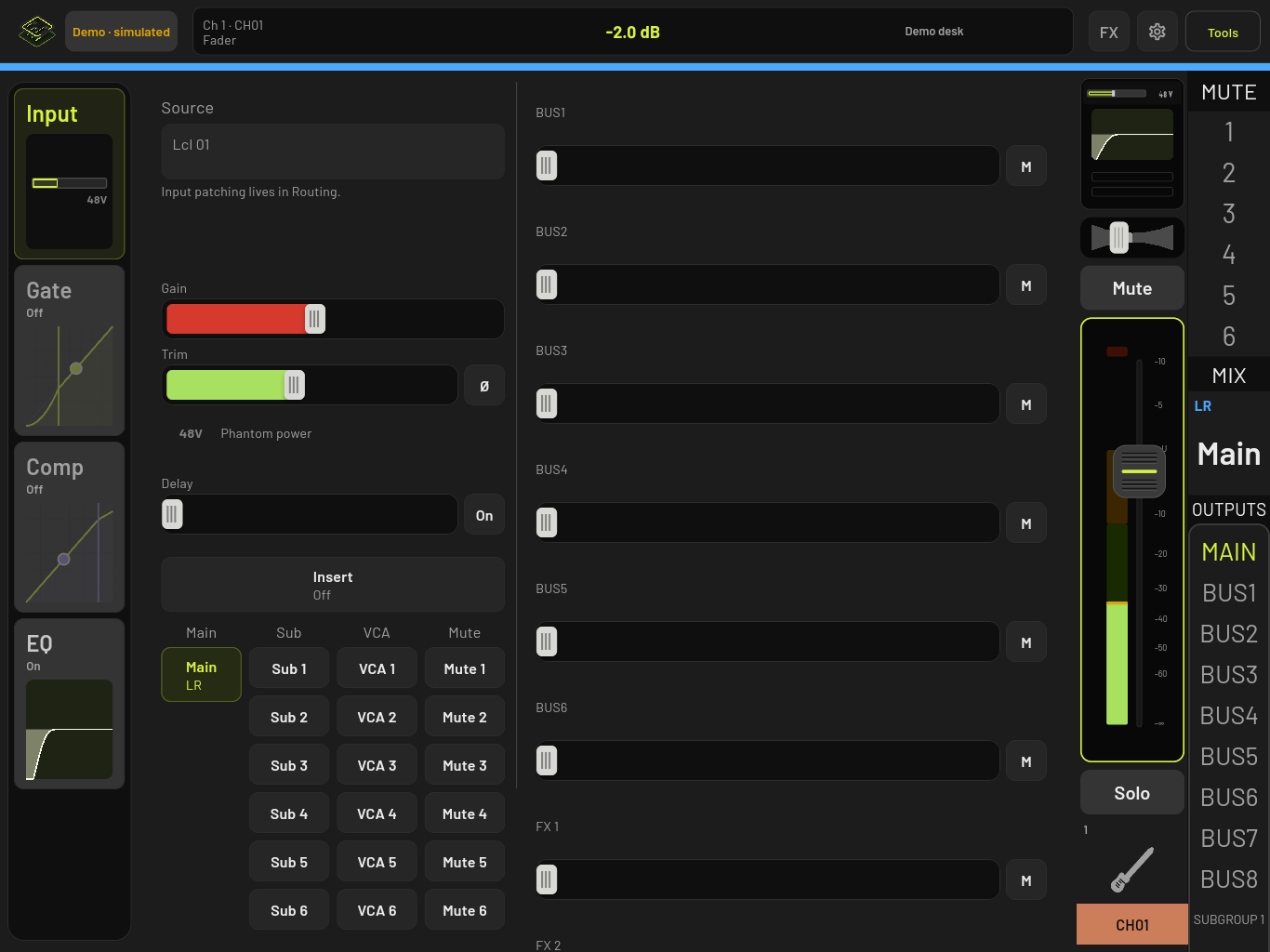
- Gain sets the preamp gain.
- Trim adjusts the level after the preamp. The Ø button next to it flips polarity.
- 48V turns phantom power on or off. The app always asks you to confirm first. If the mixer says phantom is not available for this input, the label reads Phantom unavailable for this source.
- Delay and Insert appear when your mixer has them.
If your mixer routes inputs separately, the page says Input patching lives in Routing. Change the input source on the Routing screen instead.
Sends
The right-hand column lists this channel’s sends, one row per bus, matrix or effect, using the names from your mixer. Each row has a level slider and an M button to mute that send. Depending on the mixer, you can also set where the send is taken from, either Pre-fader / Post-fader or a list of tap points.
Assignments
Under the input controls are buttons that assign the channel to the main mix, subgroups, DCAs (or VCAs), mute groups and views. Only the groups your mixer has are shown. On a phone they are under the Assignments heading.
A button that does nothing when tapped is waiting for the mixer to report its current state. The app never guesses and writes a value it has not read.
Gate
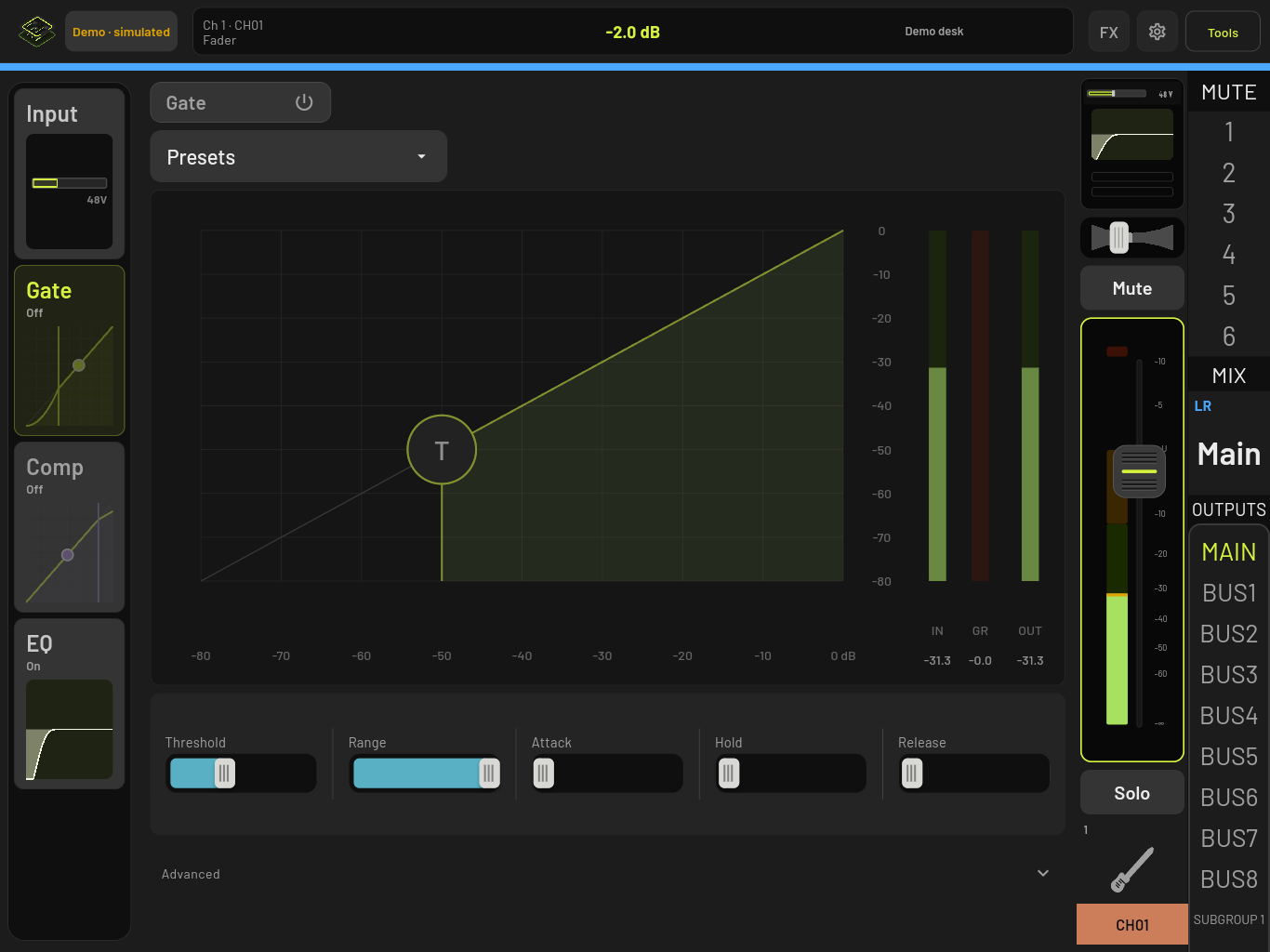
Tap the Gate header to turn the gate on. Set it with Threshold, Range, Attack, Hold and Release, or drag the handle on the graph. The IN, GR and OUT meters show what the gate is doing.
Advanced, when your mixer has those settings, holds the key source and key filter.
Compressor
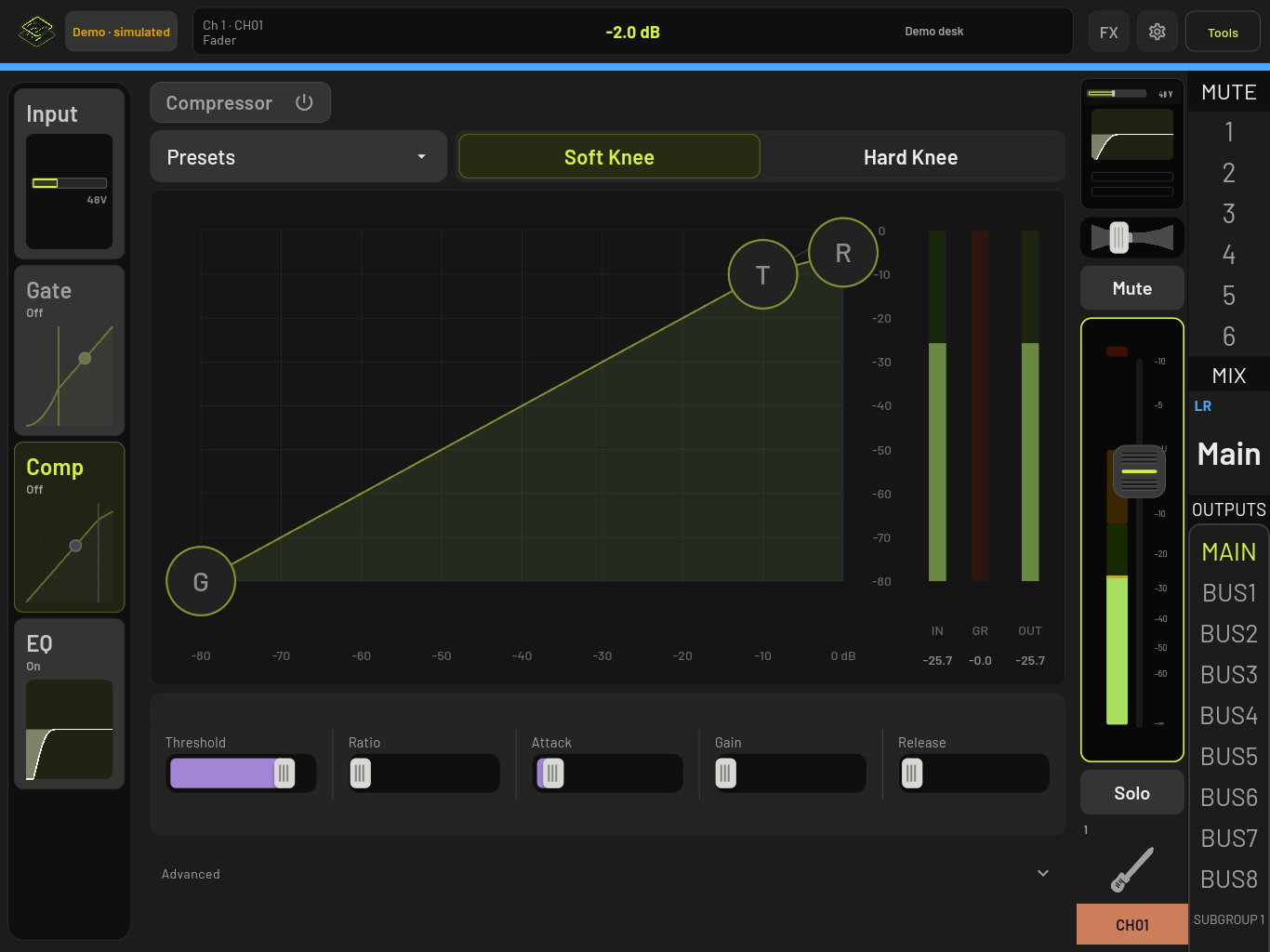
Tap the Compressor header to turn it on. Set it with Threshold, Ratio, Attack, Gain (make-up gain) and Release, or drag the handles on the graph. Soft Knee and Hard Knee set the knee. Some mixers offer a Knee list instead.
EQ
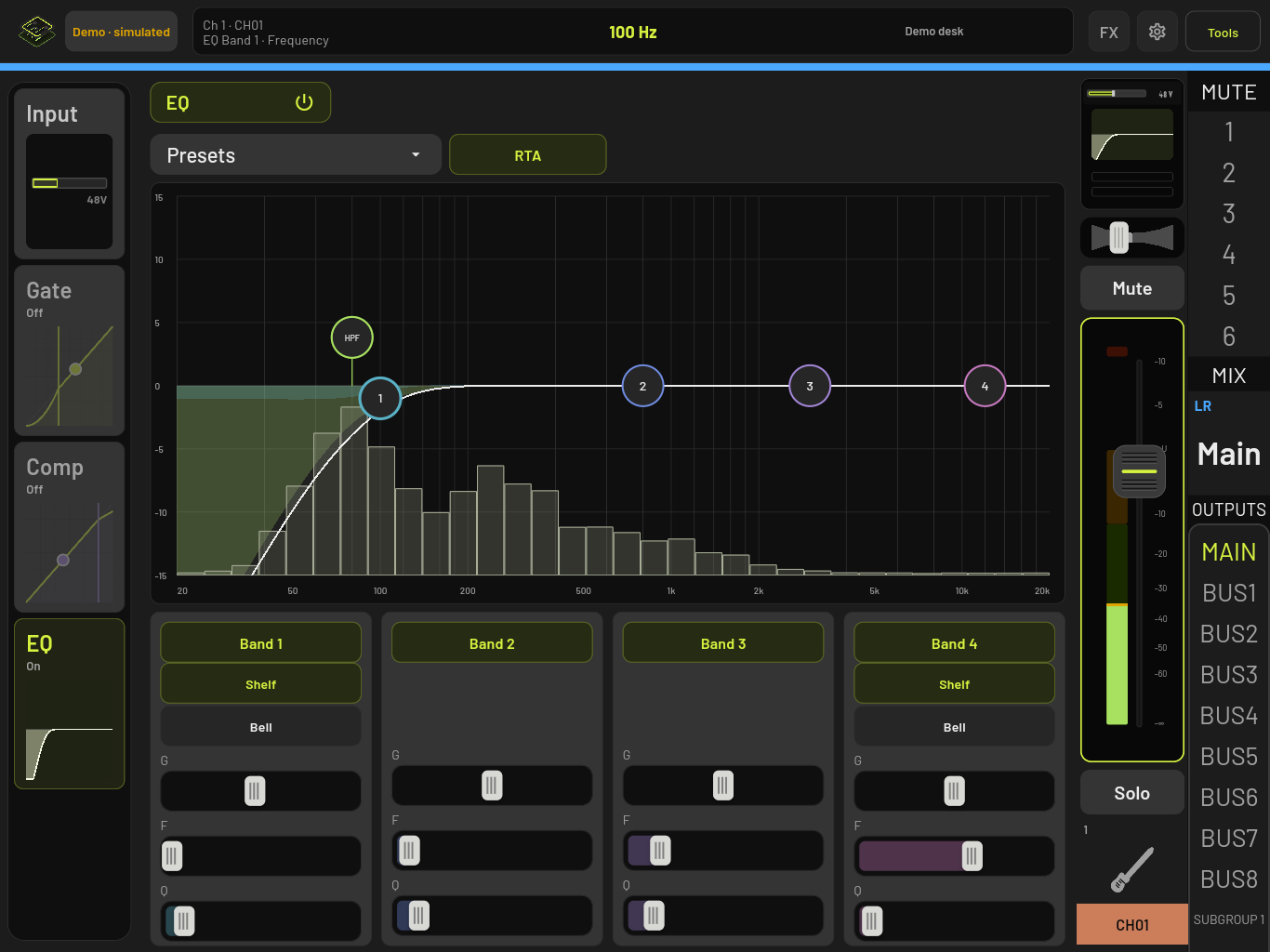
Tap the EQ header to turn the EQ on.
- Drag a numbered point on the graph to change that band’s frequency and gain, or use each band’s G (gain), F (frequency) and Q (width) sliders.
- Shelf and Bell set the band’s shape. Some mixers offer more shapes in a Shape list.
- HPF turns on the high-pass filter. HPF frequency sets where it cuts, and Low cut slope sets how steeply, if your mixer offers it.
- RTA shows the live frequency analyser behind the curve.
The number of bands comes from your mixer. Most input channels have four.
Presets
Every page has a Presets button. Presets are saved on this device, not on the mixer.
- Save current saves the page’s current settings.
- Recall loads a preset. It does not change whether the processor is on or off.
- Copy processor and Paste processor copy settings from one channel to another.
After a recall, the app tells you how many settings the mixer confirmed, for example “12 of 12 settings confirmed.”
Name, colour and icon
Tap the channel name in the top bar, or long-press the name on a mixer strip.
- Type a new name and tap Rename.
- Color and Icon offer the colours and icons your mixer supports. Pick one and tap Apply.
- Link with channel … pairs this channel with its neighbour as a stereo pair. The app asks you to confirm first.
If the mixer refuses a change, the reason appears in the dialog.
On a phone
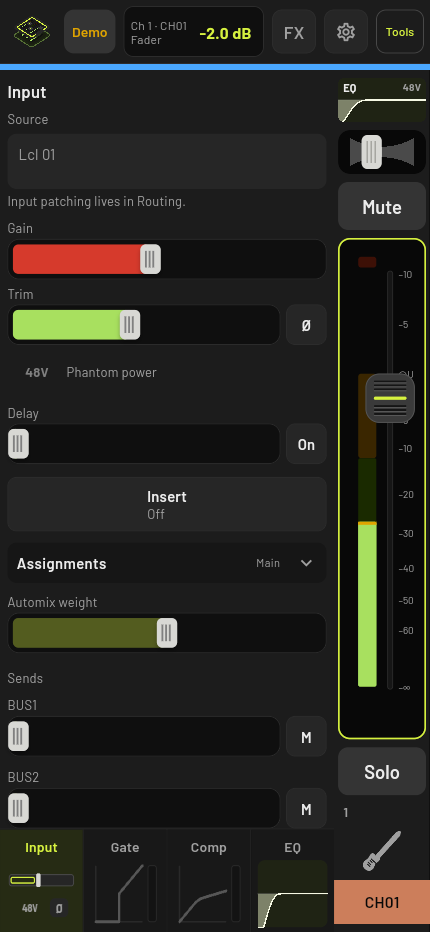
The pages move to tabs along the bottom, and the channel’s fader stays on the right.
Output processing
Tap the processing preview on the master strip to open Output processing. Pick an output from the Output list, then choose Parametric EQ, Graphic EQ, Compressor / Limiter, Delay or Output controls. Only the ones your mixer has for that output are shown.
On a Graphic EQ, Draw lets you sketch a curve and Flat resets it. Neither changes the mixer until you tap Apply.
When a control is greyed out
| You see | It means |
|---|---|
| Loading… | The mixer has not sent this value yet. |
| Unavailable for this source | The mixer has no gain range for the current input. |
| Limited on this device | An access limit is on. See Settings. |
| (unconfirmed) | The mixer accepted the change but did not report it back. |