
Getting started
OpenFader runs on a phone, tablet or computer and controls your mixer over the network. This page covers installing it and connecting for the first time.
Install
Downloads are on the GitHub releases page.
| Platform | File | Notes |
|---|---|---|
| Windows, 64-bit | OpenFader-<version>-windows-x64-setup.exe |
Installs into your user folder. No admin rights needed. |
| Windows, portable | openfader-windows-x64.zip |
Unzip and run openfader.exe. Keep the other files in the folder next to it. |
| Android | OpenFader-<version>-android.apk |
Not on the Play Store. Install the APK directly. |
There are no iPhone, iPad, Mac or Linux downloads yet.
Before you install on Windows:
- Quit OpenFader if it is running. Setup stops and asks you to quit it from the system tray first.
- The installer is not code-signed.
- If you want to record, install your audio interface’s ASIO driver. See Recording.
Connect to your mixer
Your device and the mixer must be on the same network. Discovery does not cross subnets, so a guest Wi-Fi or a separate VLAN will not see the mixer.
The app opens on the Connections screen and starts looking for mixers straight away.
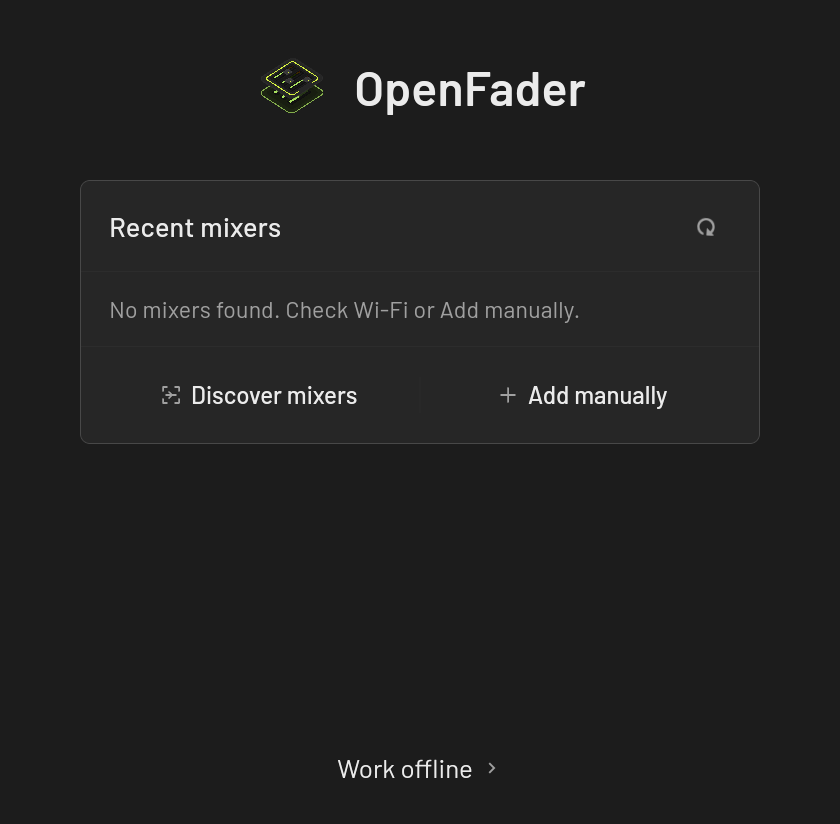
- Tap Discover mixers. On Android, allow the Nearby Wi-Fi devices permission when asked (older Android versions ask for Location).
- Tap Connect next to your mixer.
- The mixer opens when the connection is ready. If it does not, tap Open mixer.
Add a mixer by IP address
If your mixer does not show up, add it by address. The mixer shows its IP address in its own network settings.
- Tap Add manually.
- Enter the IP address or hostname.
- Choose the Mixer type, or leave it on Automatic.
- Tap Add mixer.
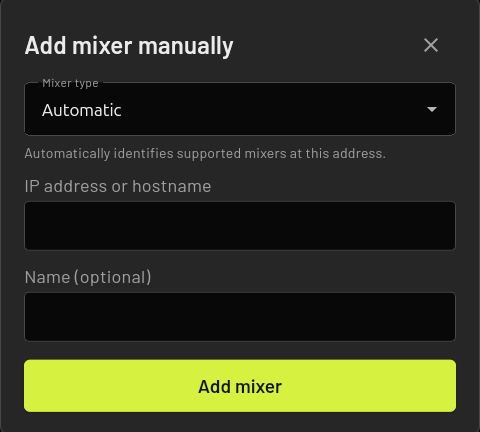
A Mackie DL32S can take up to 90 seconds to load. Discover mixers can also miss a DL32S the first time, so adding it by IP address is the reliable way in.
The Mixer type list includes Behringer X32 and WING. Support for those is still being tested. See Supported mixers.
Next time
Mixers you connect to are saved and listed on the Connections screen. With Reconnect to the last mixer turned on, which is the default, the app reconnects at launch.
To skip the Connections screen entirely, go to Settings, Connections and set Start on to Last mixer.
If the connection drops, the app tries again three times, after 1, 2 and 5 seconds. If that fails, tap Reconnect mixer.
Tapping Disconnect stops the app from reconnecting to that mixer at the next launch.
Try it without a mixer
Tap Work offline at the bottom of the Connections screen. You get a simulated mixer with moving meters, so you can learn the app or plan a layout before the gig.
The toolbar shows Demo · simulated while you are offline. Nothing you change there reaches a real mixer.
To connect to a real mixer afterwards, tap Tools, then Connections.
If it cannot find your mixer
- Check the mixer is switched on and on the same network and subnet as your device.
- Check the mixer’s IP address has not changed, then add it by IP.
- On Android, check that OpenFader has the Nearby Wi-Fi devices (or Location) permission.
- “Still waiting for a supported mixer at … after 90 seconds” means nothing answered at that address. Check the address and the mixer type.
- “Local network permission is required.” means the app was not allowed to scan. Allow the permission and try again.