
Effects
Tap FX in the top bar to open the effects rack. There is one card per effects slot. The number of slots, and the effects you can load into them, come from your mixer.
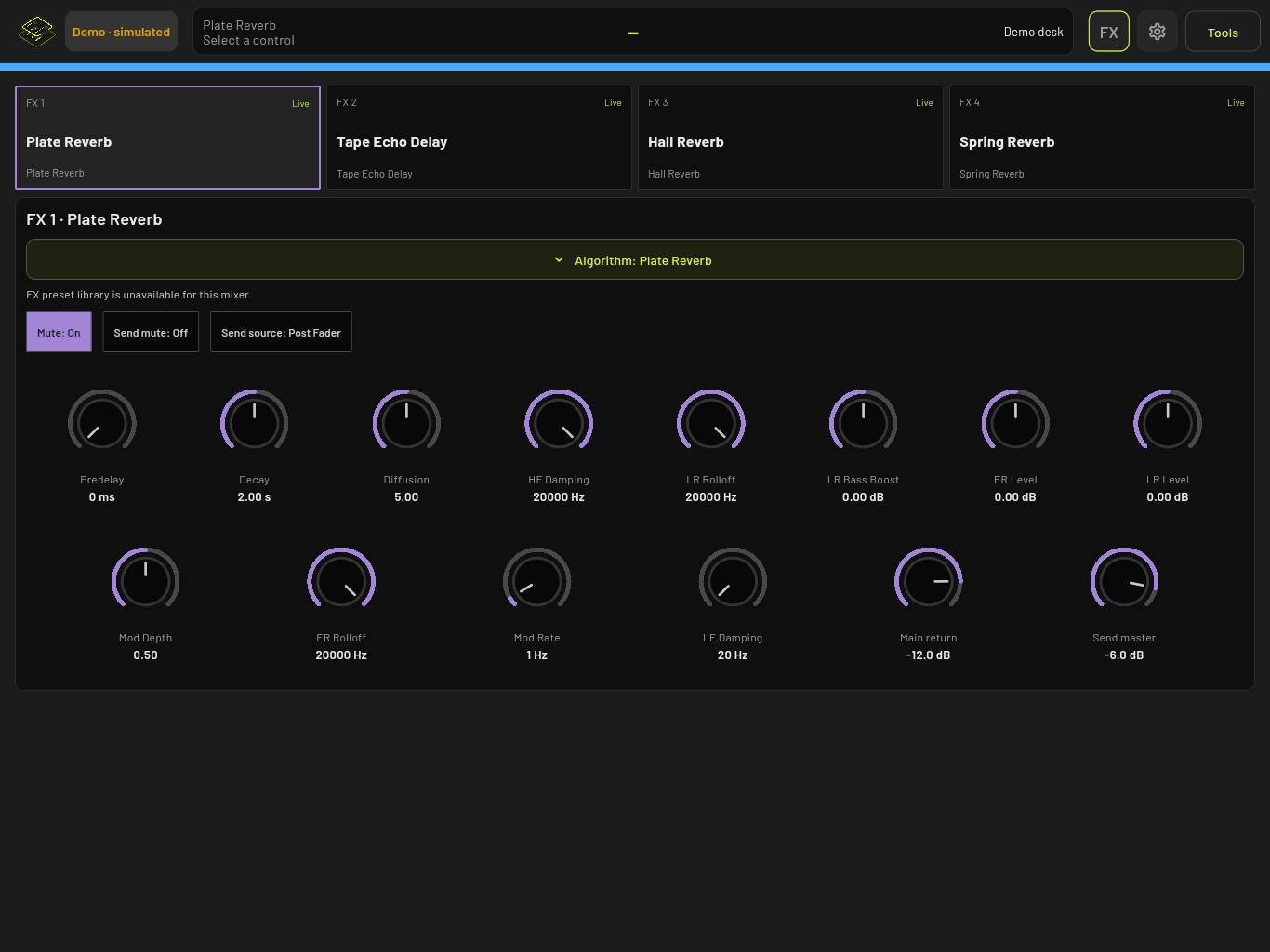
Change the effect in a slot
- Tap a slot card.
- Pick an effect. Depending on the mixer, this is either a list on the card, or an Algorithm button that opens the list.
- If you used Algorithm, tap Apply to FX 1 (or whichever slot it is) to load it.
Only effects your mixer offers for that slot are listed. On some mixers, certain effects only work in some slots.
Adjust an effect
Each effect shows its settings as knobs. Drag a knob up or down to change it. To type a value instead, tap the knob, then tap the value in the top bar.
Some settings are a list of options rather than a number. Tapping those opens the list.
For delays that support it, tap TAP or Tap tempo in time with the music and the delay time follows.
On and bypass
Some mixers have On and Bypass buttons for each slot. Where the mixer has no such switch, the buttons are hidden and the card shows —.
Getting signal into an effect
Send channels to an effect using the sends on each channel’s Input page. Mixers that use effect slots as inserts have Insert settings on the same page. The X32 also has an FX source tab in Routing.
Limits
- There is no effects preset library yet. The rack says FX preset library is unavailable for this mixer.
- A card that shows Unavailable is still waiting for the mixer to send that slot’s settings. Its knobs are greyed out until then.
- If an access limit covers effects, changes are refused with This control is limited on this device. See Settings.
- Saved scenes do not capture every effects setting. See Scenes.