
Mixing
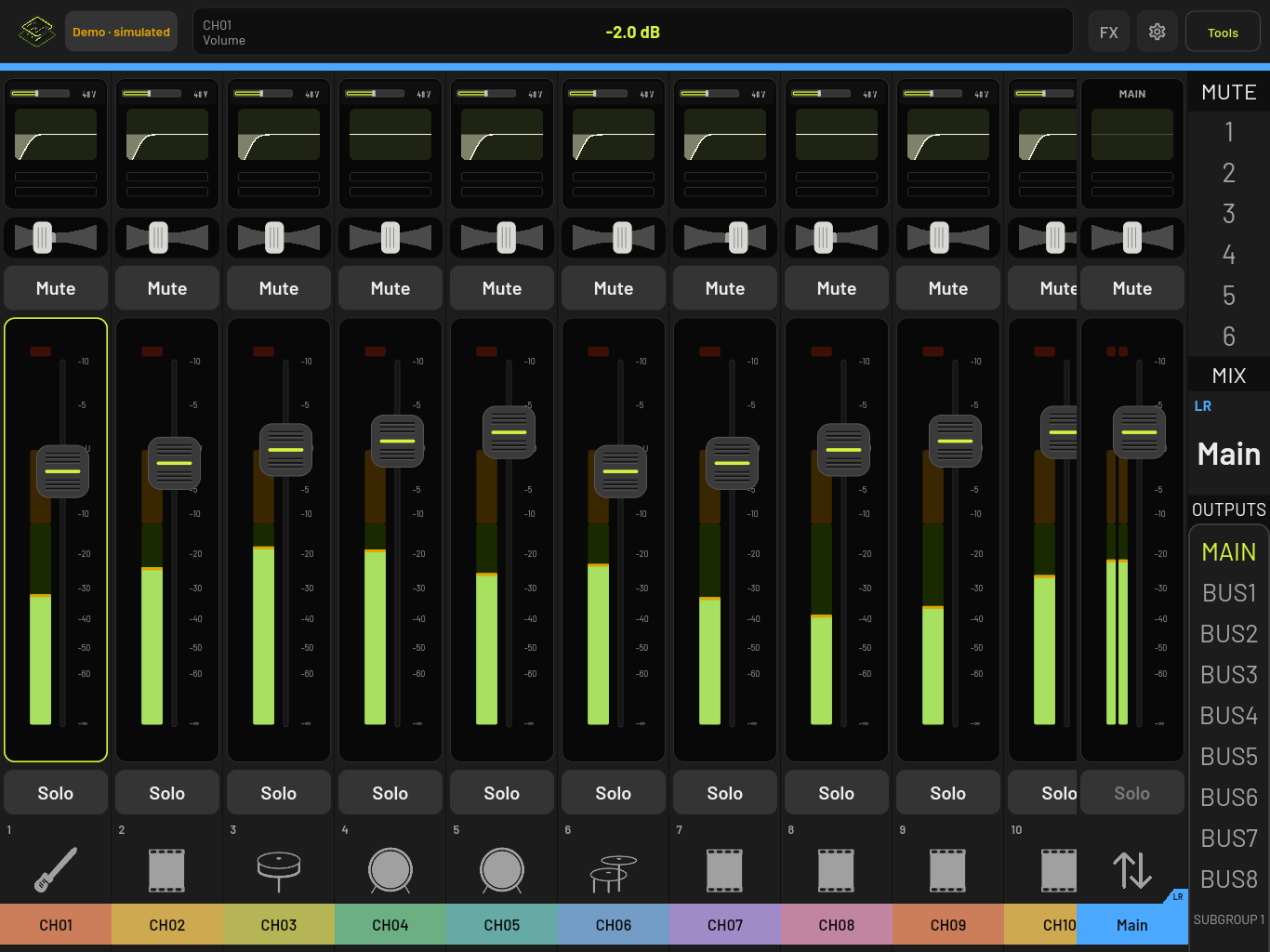
The mixer screen is a row of channel strips with the master strip fixed on the right. On a tablet or computer there is also a side rail with mute groups and outputs.
Channel strips
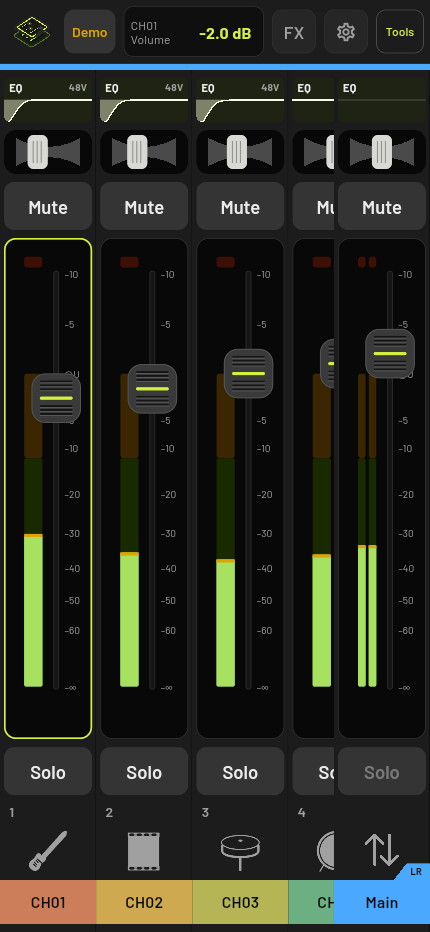
Each strip has, from top to bottom:
- a gain and EQ preview (tap it to open channel processing)
- a pan bar
- Mute
- the fader, with the meter beside it
- Solo
- the channel name, number and icon
Controls stay greyed out until the mixer confirms their current value. A fader showing — is still waiting for the mixer.
Faders
- Drag the fader cap up or down. Only the cap moves the fader, so you can still scroll the strips sideways without bumping a level.
- Tap the cap to select the channel. Its level shows in the bar at the top of the screen.
- Double-tap the cap to set it to unity (0 dB).
- Tap the level in the top bar to type an exact value, from -60 to +10 dB.
The meter is green below -12 dB and amber from -12 dB to 0 dB, with a clip light on top.
Mute, solo and pan
- Tap Mute. It turns red when the channel is muted.
- Tap Solo. Clear solos at the bottom of the side rail turns every solo off. On a phone, a SOLO banner with a Clear solos button appears instead.
- Drag the pan bar left or right. It snaps to centre, and a double-tap centres it.
Keyboard
On a computer, select a channel and use:
| Key | Does |
|---|---|
| Up / Down | Nudge the fader |
| Left / Right | Select the next or previous channel |
| M | Mute |
| S | Solo |
Banks
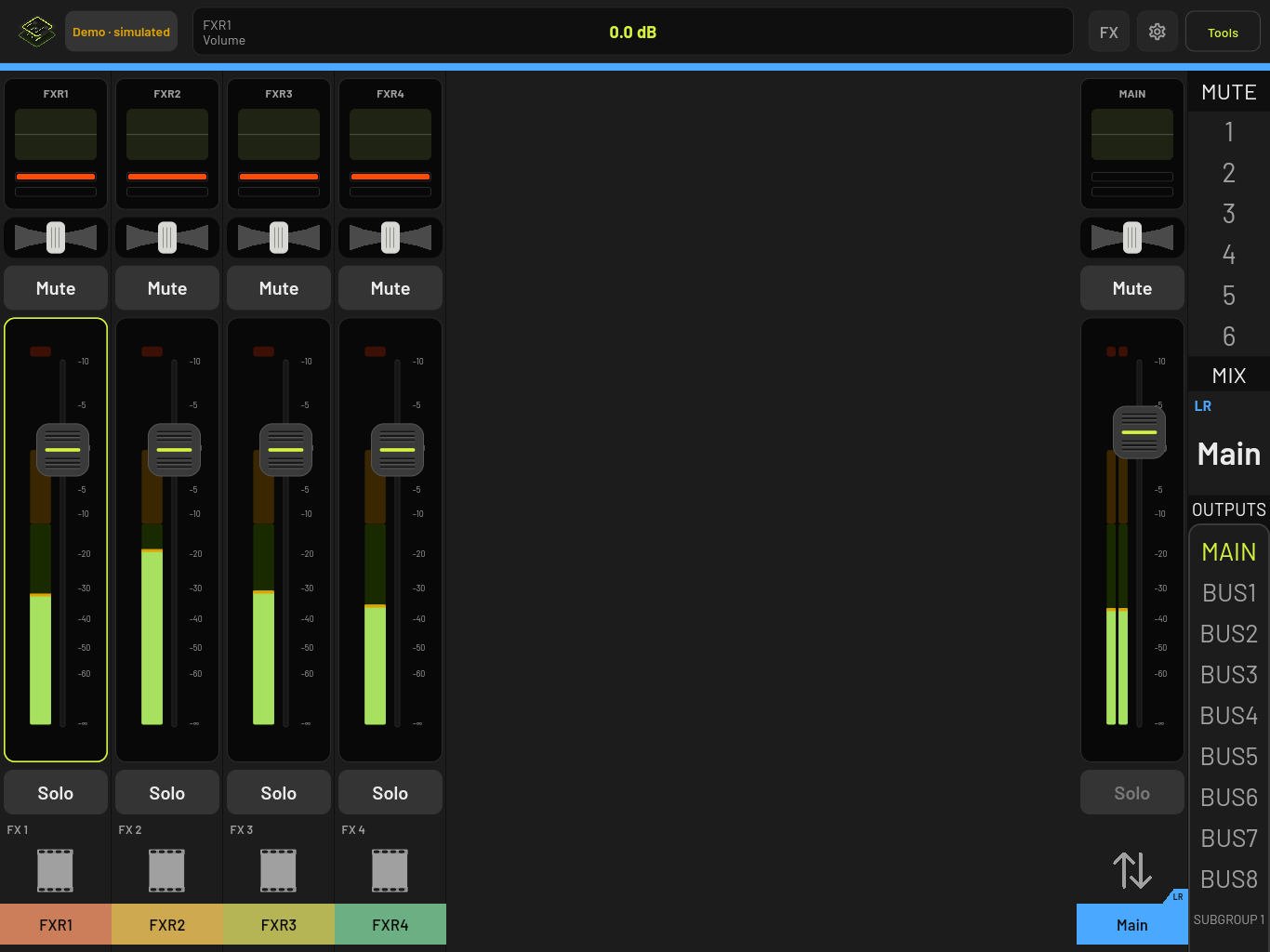
Banks are groups of channels, such as inputs 1 to 16 or the effects returns. The banks you see come from the mixer you are connected to, so their names and number change from mixer to mixer. The All bank shows every input and return.
To switch bank, tap Tools, then Mixer layout, then pick a bank. The current one has a check mark.
Layers
A layer is your own set of channels in your own order, for example just the vocal mics. Each layer can show 4, 6, 8 or 12 strips per page. The master strip is never part of a layer and stays on the right.
- Tap Tools, then Mixer layout, then Layers.
- Under New from template, tap Vocals, Drums, Band or Stream. The template picks channels by name, so a channel called “Lead Vox” or “Choir” lands in Vocals. If no names match, it starts with the first few channels.
- In the editor, tick channels under Channels, drag them into order, and choose the Strips per page.
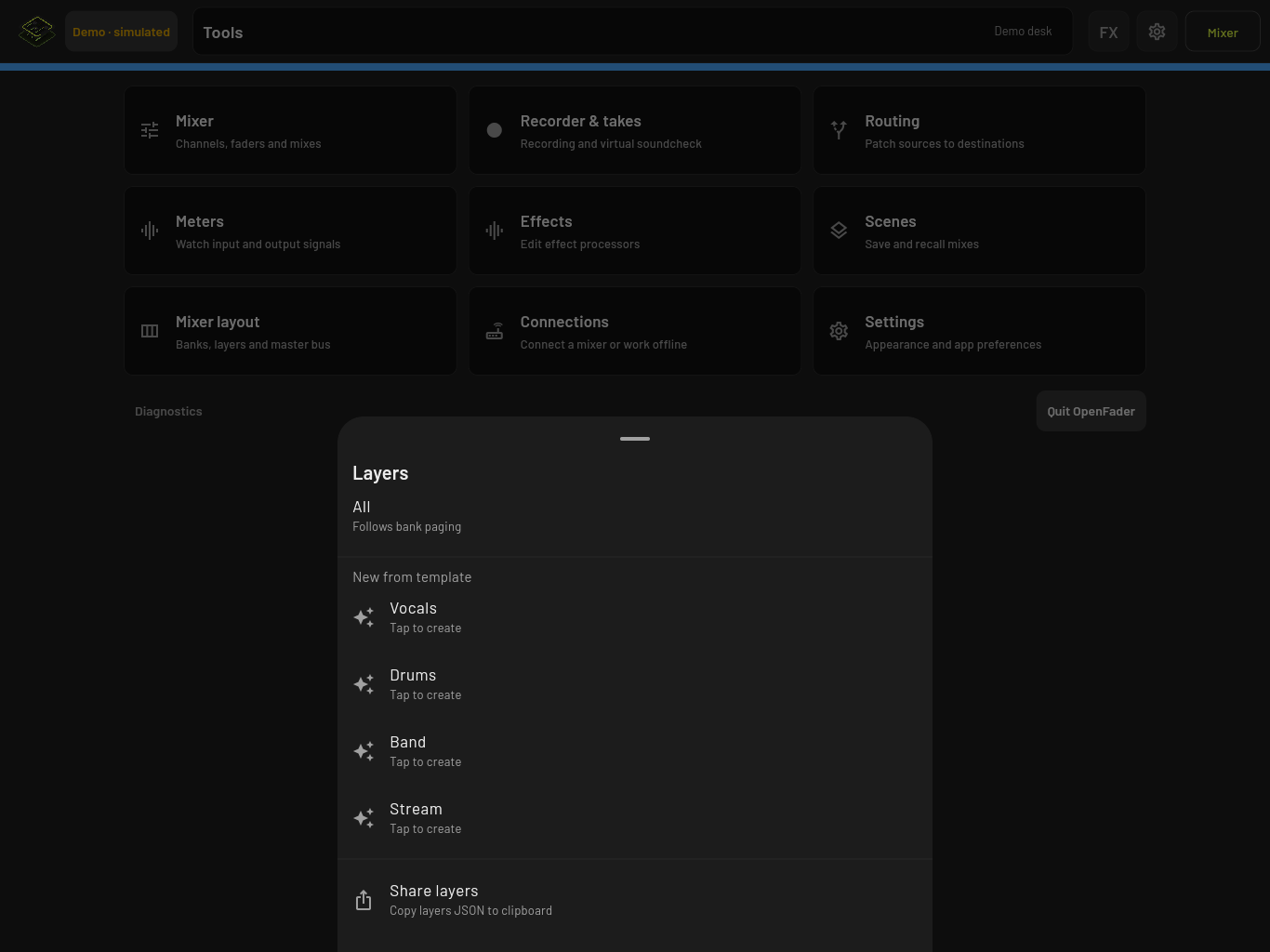
To go back to every channel, open Layers and tap All. Picking a bank also switches you back to All.
Layers are saved per mixer. If a channel in a layer no longer exists on the mixer, it is skipped rather than breaking the layer. To copy layers to another device, tap Share layers to copy them to the clipboard, then use Import layers on the other device and paste them in.
Monitor mixes
Pick a bus and the faders turn into sends to that bus, so you can mix someone’s monitors with the same faders.
- Tap a bus in the OUTPUTS list on the side rail, or tap the master strip and pick a bus.
- The top bar now reads Send → BUS1 (or whatever the bus is called), and the master strip becomes that bus’s master.
- To go back to the main mix, pick MAIN.
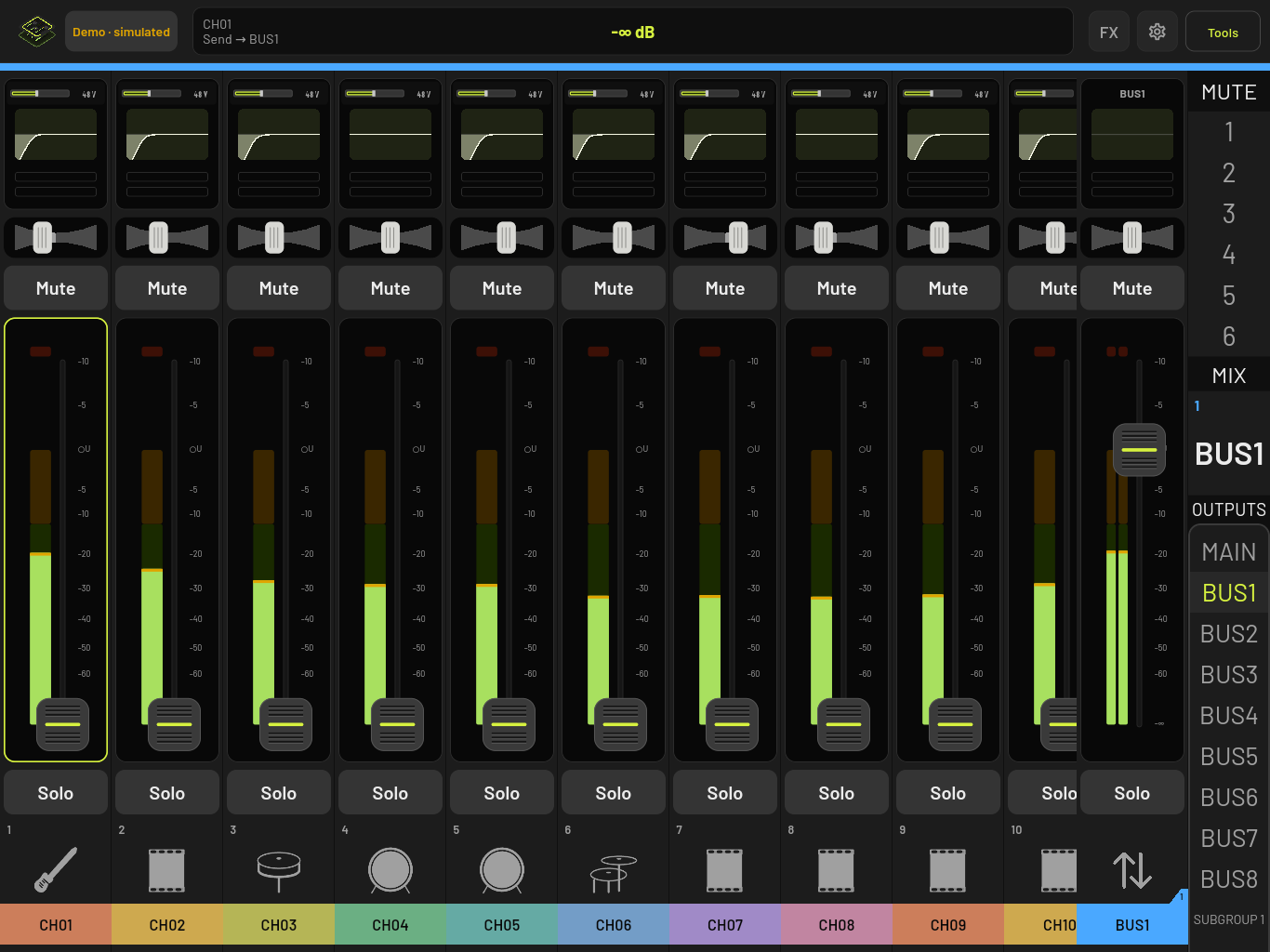
This only works for buses. Picking a subgroup does not turn the faders into sends. If the mixer does not report a send level for a channel, that channel’s fader is locked and shows —.
Mute groups and DCAs
If your mixer has mute groups, they appear as numbered buttons under MUTE on the side rail. Tap a number to mute that whole group. On a phone, use Tools, Mixer layout, Mute groups.
To change which channels are in a group, open Mute groups and tap Edit group members. You can also assign a channel to mute groups and DCAs from the Input page of channel processing.
DCAs show up as their own strips when the mixer has them.
Stereo pairs
Long-press a channel’s name to open its settings, then turn on Link with channel …. A linked pair shows as one strip numbered like 1–2. Moving its fader moves both channels. Pan, mute and solo stay separate.
Phone layout
On a phone the strips are shorter and there is no side rail. Use Tools for banks, layers and mute groups.
Changing how strips look
Go to Settings, Appearance & controls, Channel strips:
- Essential shows only the fader, meter, mute and name.
- Full shows everything.
- Monitor hides processing and pan and gives the fader more room.
- Phone is tuned for small screens.
You can also turn single parts on or off, change the Fader size, reorder the parts, and turn on Compact processing to show only the EQ preview on every strip. Larger fader touch targets makes the fader cap easier to grab.
Meters
For a bigger view of levels, tap Tools, then Meters.
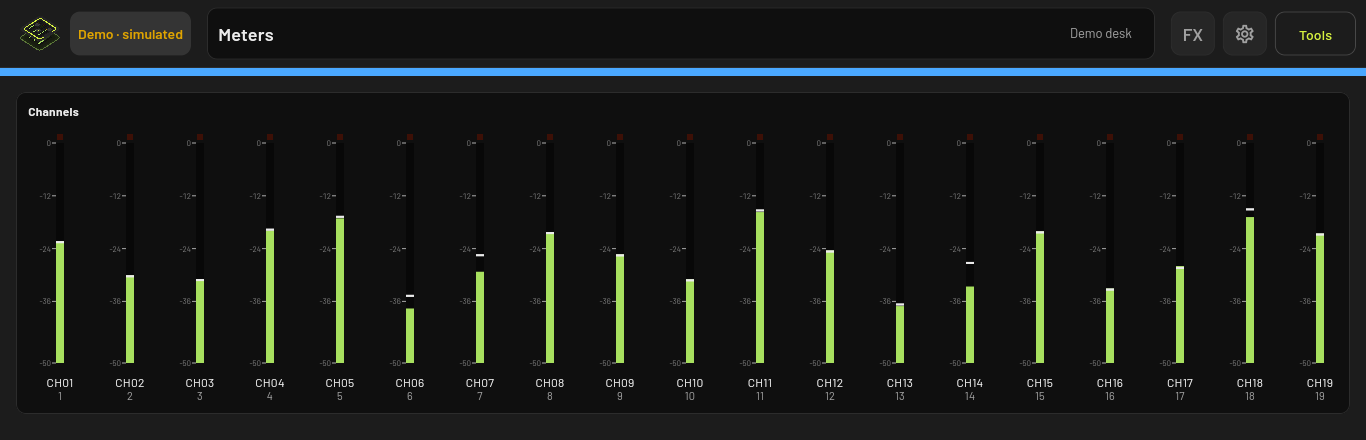
Peak hold time, clip hold and meter refresh rate are in Settings, Appearance & controls.