
Recording
OpenFader can record every channel from your audio interface to a computer, and play takes back through the mixer for a virtual soundcheck.
Recording only runs on a computer: Windows, Mac or Linux. A phone or tablet can control a computer’s recorder remotely, but cannot record by itself. See Control the recorder from a phone.
| Computer | Audio driver |
|---|---|
| Windows | ASIO. Install your interface’s 64-bit ASIO driver. There is no fallback to other Windows audio drivers. |
| Mac | Core Audio. Allow microphone access when asked. |
| Linux | ALSA |
Up to 64 channels. Takes are saved as 24-bit WAV.
Set up your audio interface
- Tap Tools, then Recorder & takes.
- Tap the settings button in the recorder’s top bar.
- Under AUDIO INTERFACE, tap Refresh devices, then pick your interface. Each one is listed with its input and output count.
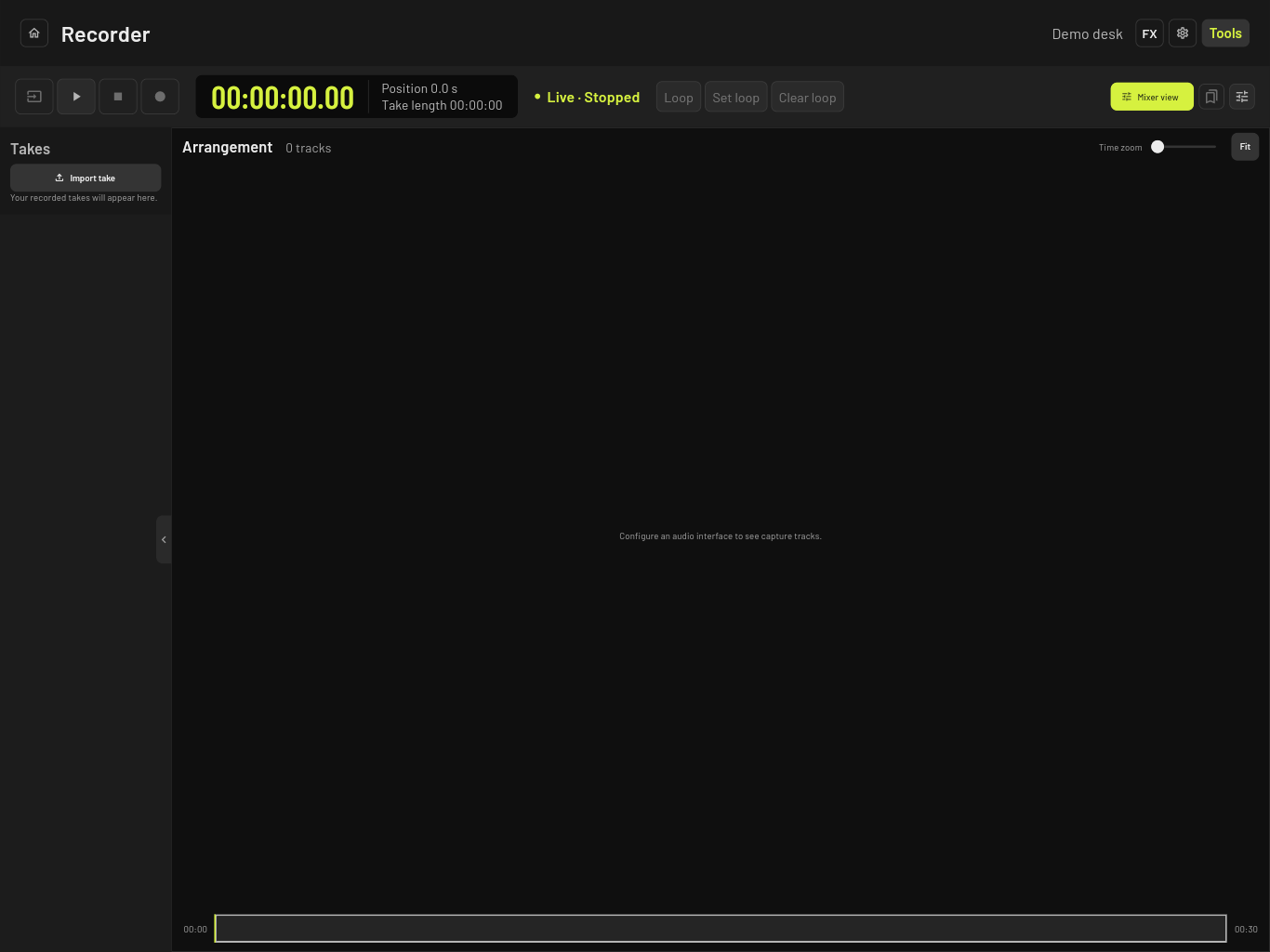
The recorder uses the interface’s current sample rate. There is no sample rate setting in OpenFader. Set the rate, buffer size and clock in your interface’s own control panel. If you change any of them, tap Refresh devices and pick the interface again.
Record
- Tap Record. The status changes to Live · Recording and the clock counts up.
- Tap Stop. The take appears in the Takes list as Complete.
You cannot quit OpenFader while it is recording. It asks you to stop first.
Play back and move around
Select a take in Takes, then:
- Tap the clock to jump to a time. Type seconds or
mm:ss. - Tap the waveform to jump to that point.
- Drag across the waveform, then tap Set loop to loop that section. Clear loop turns it off.
- Use Time zoom and Fit to zoom the arrangement.
Playback goes through the mixer as a virtual soundcheck. See Virtual soundcheck.
Export a take
- Stop playback, so the status reads Live · Stopped.
- Select a take and tap Export take.
- Choose a format:
- Multichannel WAV file: one file with every channel. Limited to 4 GB.
- Mono WAV tracks folder: one WAV per channel. Use this for long takes or for opening in a DAW.
- Native take folder: OpenFader’s own format, for moving a take to another OpenFader computer.
- Pick a folder.
Import a take
Tap Import take in the Takes list and pick a multichannel WAV, a native take folder, or a mono tracks folder exported from OpenFader. A mono tracks folder must have come from OpenFader. A folder of WAV files from another program will not import.
Export and import only work on the computer itself, not from a phone.
Control the recorder from a phone
On the computer:
- Open the recorder settings. Under Remote pairing, enter the computer’s network address in LAN IPv4 address (for example
192.168.1.20). - Tap Enable, then Create pairing, then Copy pairing JSON. The pairing code is valid for two minutes.
- Send the copied text to your phone.
On the phone or tablet:
- On the Connections screen, tap Connect to computer.
- Paste the text into Paste pairing JSON and tap Connect.
The phone can now record, stop, play and run soundchecks. To remove a phone, tap Revoke next to it under Paired clients on the computer. Pairings do not survive a restart of the computer’s recorder, so you pair again after that.
Limits
- Per-track arm, mute and solo buttons in the arrangement do not work yet.
- There are no markers.
- A take marked Recovery needed was interrupted, for example by the interface disconnecting. There is no way to repair it in the app yet.
- The app does not show free disk space. Check it before a long recording.
- Recording and playback have not been tested with every interface and mixer.
Messages you might see
| Message | What to do |
|---|---|
| No usable ASIO interfaces found… | Install the interface’s 64-bit ASIO driver, connect it, close other audio programs, then tap Refresh devices. |
| The take and interface sample rates must match. | Set the interface to the take’s sample rate in its control panel, then refresh. |
| …layout changed; refresh and select the interface again | You changed the interface’s settings. Refresh and pick it again. |
| Recorder host is unavailable. | The background recorder is not running. Restart OpenFader. |