
Settings
Open Settings with the gear button in the top bar, or Tools, then Settings. On a tablet or computer the sections are listed down the left. On a phone, tap a section to open it.
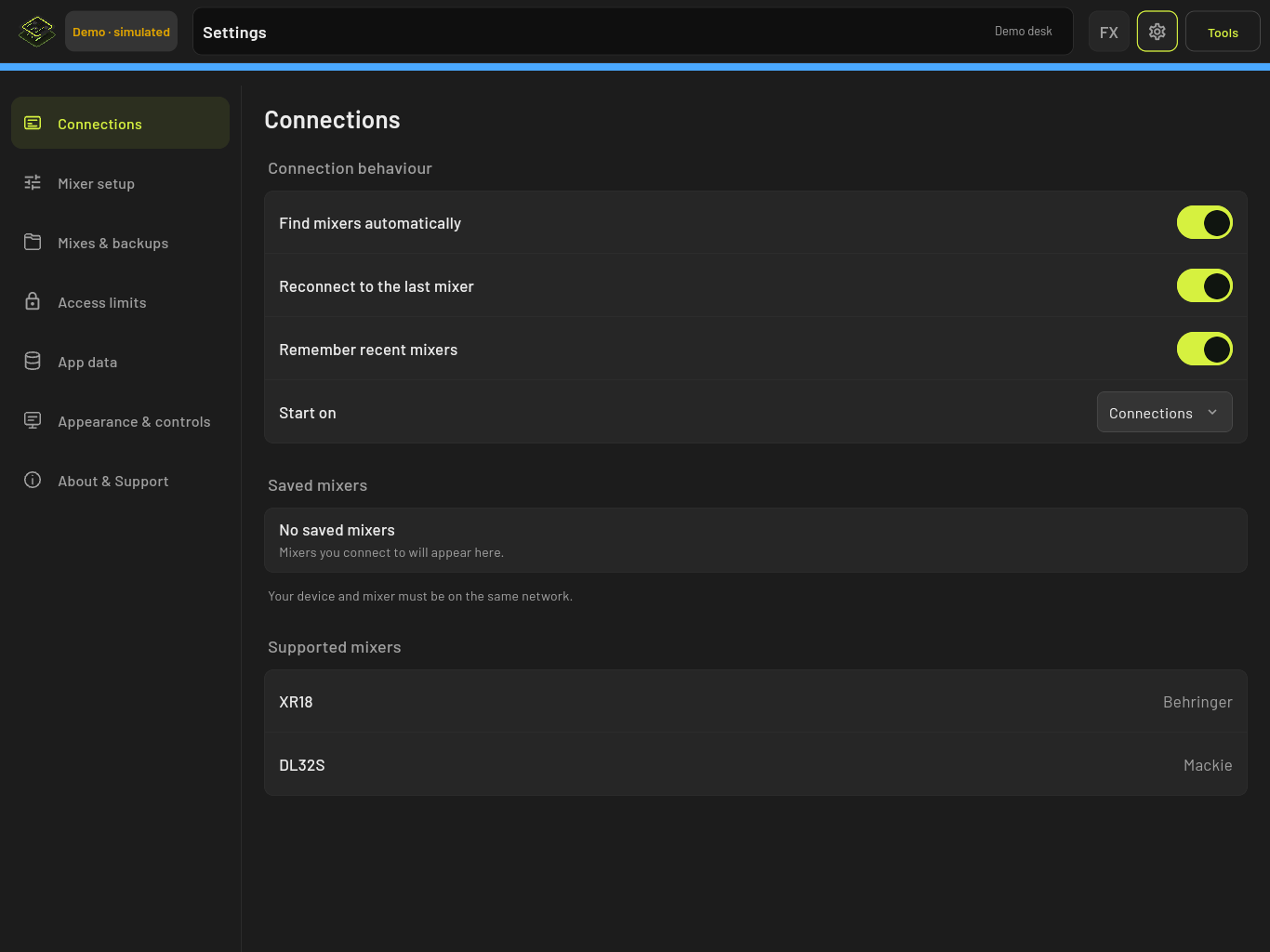
Connections
- Find mixers automatically: scan for mixers when the Connections screen opens.
- Reconnect to the last mixer: reconnect at launch.
- Remember recent mixers: keep a list of mixers you have connected to.
- Start on: open on the Connections screen or straight on the Last mixer.
Saved mixers lists the mixers on this device. Tap the forget button on one to remove it.
Mixer setup
Settings that live on the connected mixer, such as clock rate, USB audio channels and power-on safe levels. What appears here depends on the mixer. Nothing shows until you are connected.
Changes here affect the mixer itself. Changing the clock rate needs the main LR muted first.
Mixes & backups
Local mixes are mix files stored on this device. Add one with Import mix, and use the export button on a mix to share it. Nothing in this section sends anything to the mixer.
Export backup saves all local mixes to one file, and Import backup brings them back. Turn on Back up changes automatically to keep a backup on this device as you work.
Backups contain local mixes only. Scenes, shows and processing presets are not included.
Access limits
Access limits stop this device from changing certain controls. Use them to hand a phone or tablet to a volunteer without risking the whole mix.
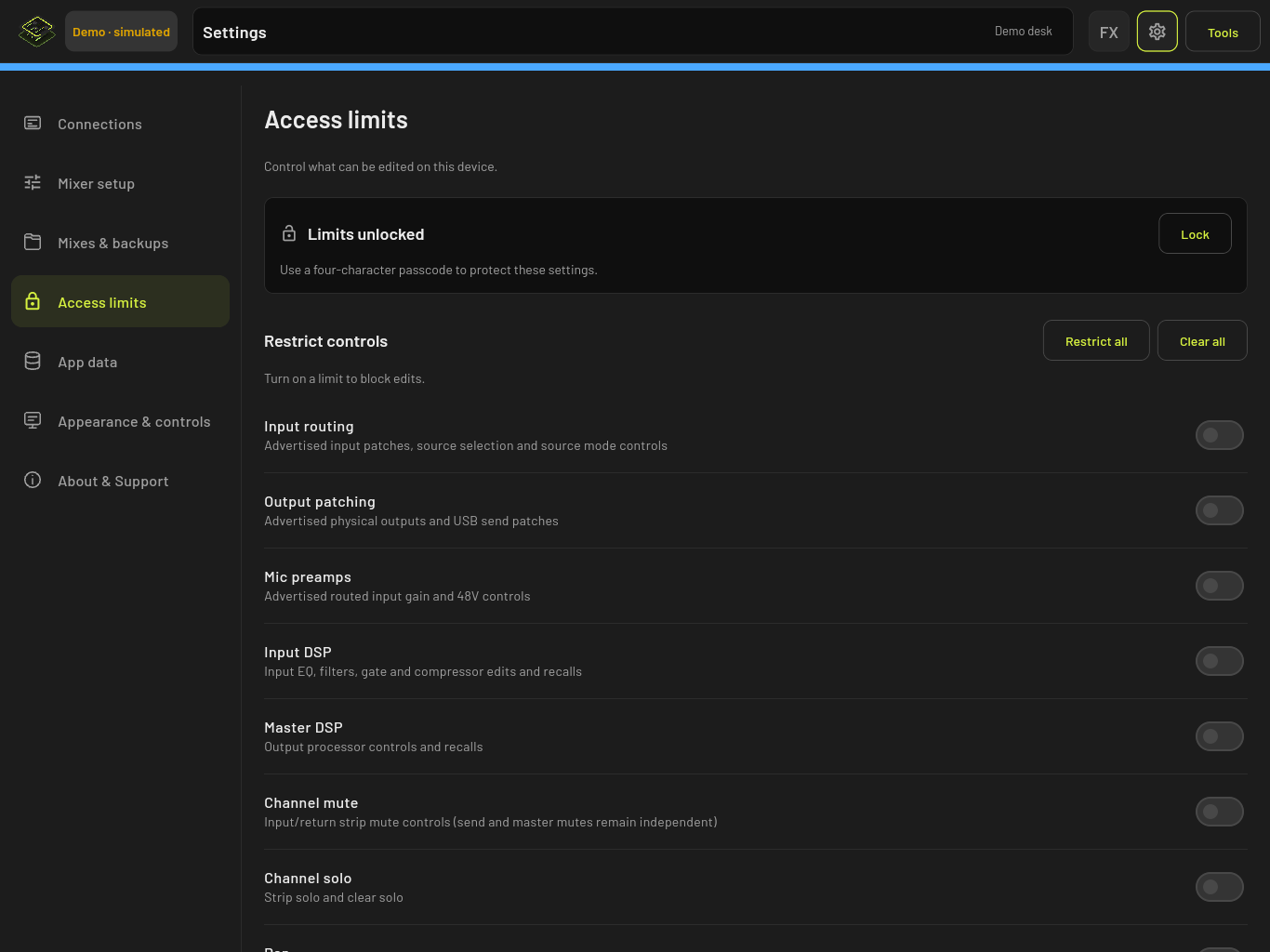
- Turn on the limits you want under Restrict controls, for example Input routing, Mic preamps, Channel mute or Pan. Restrict all turns them all on.
- Tap Lock and set a four-character passcode.
While locked, the limits cannot be changed until someone taps Unlock and enters the passcode.
Things to know:
- Limits only apply to this device. They do not lock the mixer, and other devices or the mixer’s own controls can still change everything.
- Limits are not mix isolation. Channel faders and group controls can still affect an output you limited.
- While any limit is on, scene recalls and library changes are blocked on this device.
- A limit that shows Not currently available is for a control the connected mixer does not have.
- If you forget the passcode, the only way to reset it is to uninstall and reinstall the app. That can delete local mixes, presets and settings, so export a backup first. Reset preferences and Reset all app data do not unlock it.
App data
- Clear cache removes temporary files. Mixes, scenes, saved mixers and preferences stay.
- Forget saved mixers removes saved mixer names and addresses.
- Reset preferences puts display, meter and connection settings back to their defaults.
- Reset all app data removes local mixes, scenes, shows, presets and preferences. Access limits stay, so unlock them first.
None of these change anything on the mixer.
Appearance & controls
- Appearance: Dark, Light or System.
- Accent color: Lime, Ocean, Violet or Amber.
- Interface size: Comfortable, Compact or Large.
- Keep screen awake: stop the device sleeping while OpenFader is open. On by default.
- Meters: refresh rate, peak hold time, and whether clip lights stay on.
- Larger fader touch targets: makes fader caps easier to grab. On by default.
This section also holds the Channel strips and Layers settings. See Mixing.
About & Support
- Report a bug and Request a feature open the project’s issue pages.
- Export diagnostics creates a file with app settings and counts to attach to a bug report. It contains no mixer addresses and no mix contents.
- Connection help has quick fixes for a mixer that does not appear or will not reconnect.