
Routing
Routing is where you choose which source feeds each channel and output. Open it with Tools, then Routing.
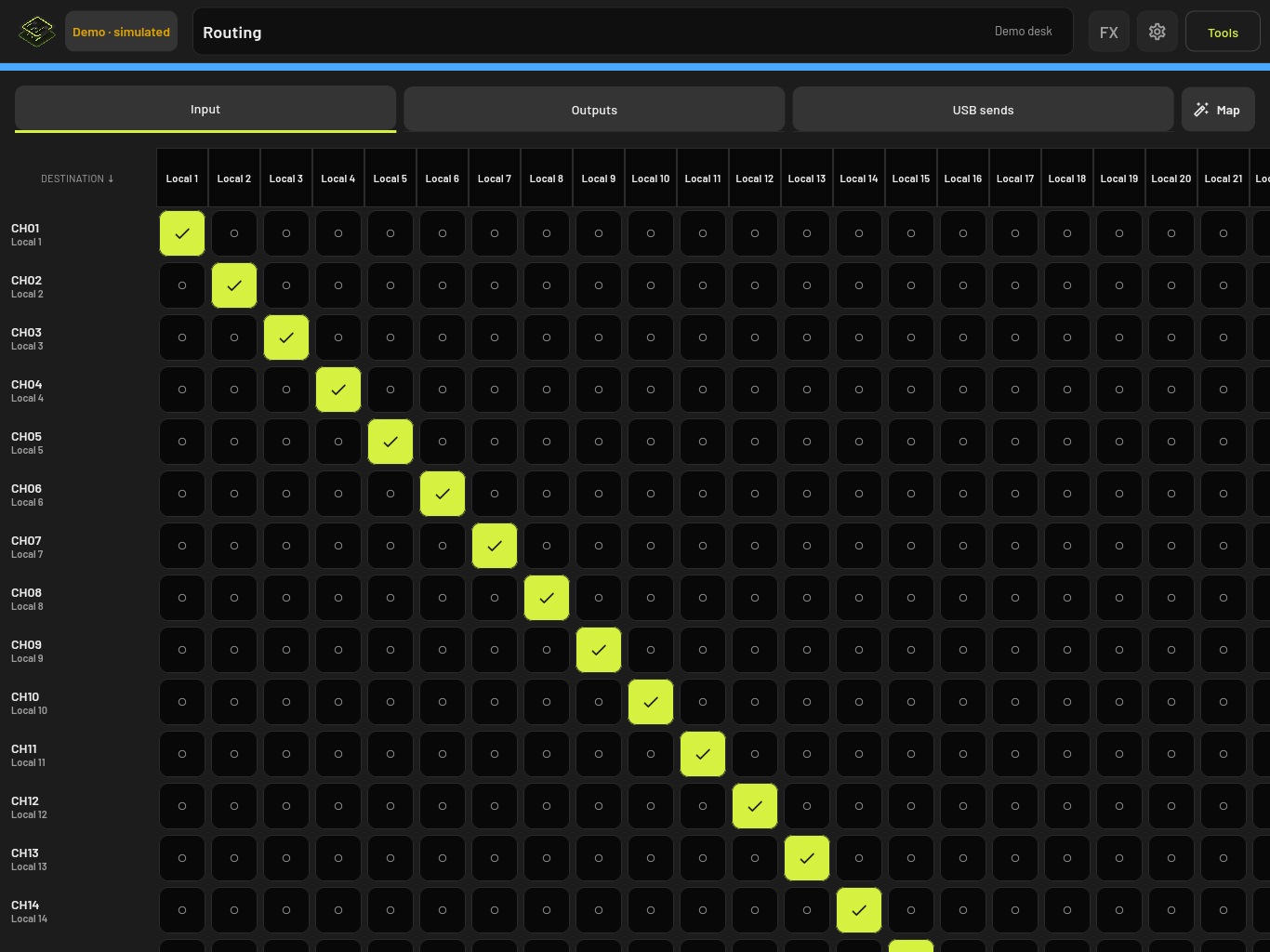
Tabs along the top split the routing into areas, such as inputs, outputs and USB sends. Which tabs you get depends on your mixer. In each tab, destinations run down the left and sources across the top. The lit cell with a tick is the current patch.
Change a patch
On a touch screen:
- Tap the cell where the destination and the new source meet.
- A sheet shows the current source and the new one.
- Tap Confirm route, or Cancel.
With a mouse, a click on a cell patches it straight away, without the confirmation sheet.
On a phone, the grid becomes a list. Tap a destination, tap the new source, then tap Confirm route.
Patch many at once
Long-press and drag across a run of cells. A review sheet lists every change, for example “Review 8 changes”. Tap Apply 8 changes to send them.
Map fills in a whole run for you:
- 1:1 patches the first source to the first destination, the second to the second, and so on.
- Reverse 1:1 does the same in reverse order.
- 1:1 from selected point starts from the cell you last picked.
The changes are sent one by one. If one fails partway through, the ones before it stay applied.
Remove a patch
Select the destination, tap Unpatch, then confirm. Unpatch only appears where the mixer allows a destination to have no source.
Output settings
Some outputs have extra settings under the destination, such as Tap position, Invert or Delay. Tap one, pick a value, and tap Apply to followed by the output’s name. Which settings appear depends on the mixer and the output.
When routing is not available
| You see | It means |
|---|---|
| Routing controls are unavailable for this driver. | Your mixer has no routing OpenFader can control. |
| This destination is unavailable or protected. | The destination is locked, limited by an access limit, or not confirmed by the mixer yet. |
| Routing changed. Close and select the route again. | Someone changed the patch on the mixer while the sheet was open. |
| Mixer disconnected | Reconnect, then try again. |
Access limits for Input routing and Output patching can block changes on this device. See Settings.
The routing screen does not show its own error messages. If a patch fails, the message appears in a banner on the mixer screen.